01
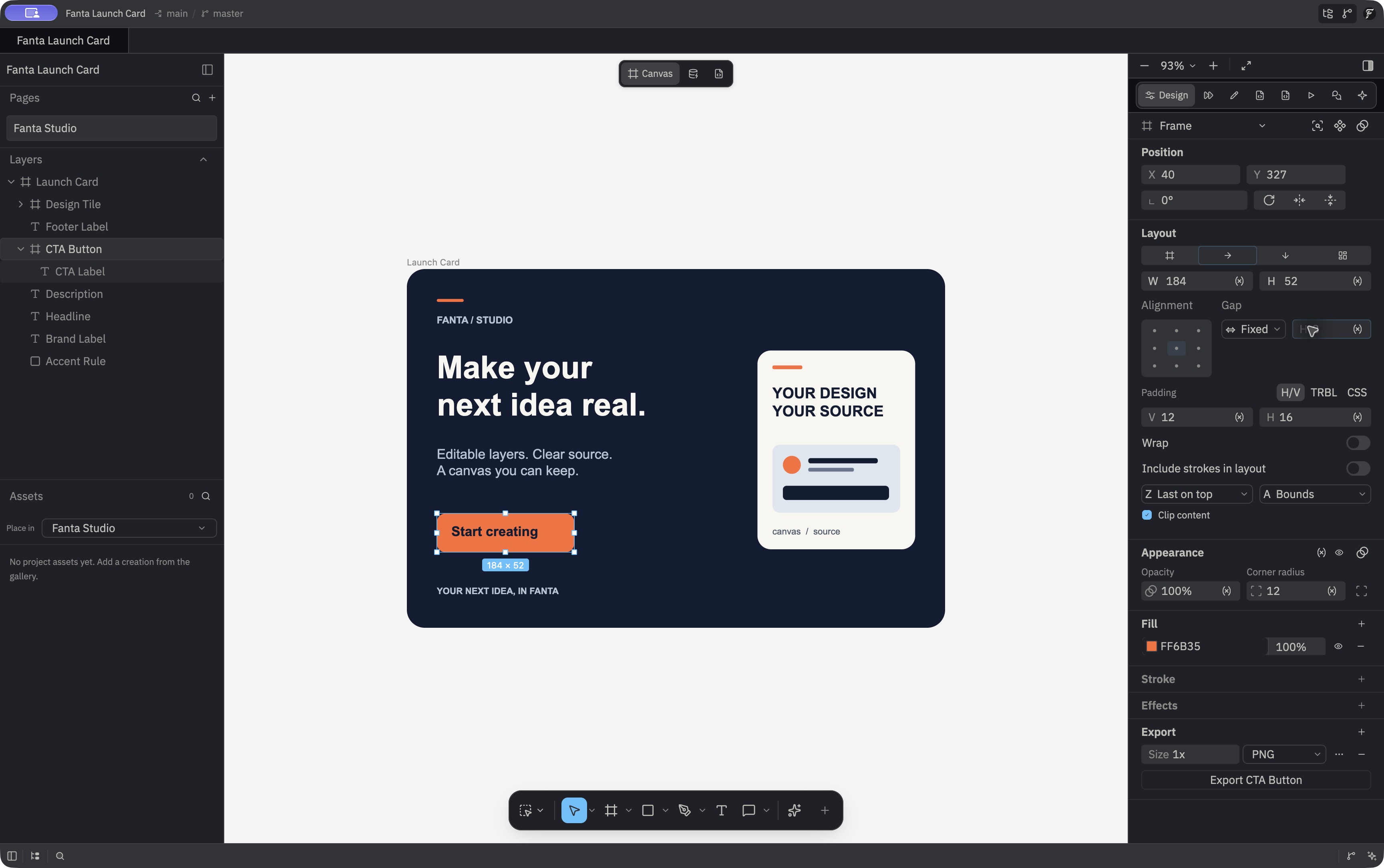
Make it on the canvas
Draw, arrange, and refine native layers. Use the inspector for type, fills, layout, and reusable components.
Read the guideThe Fanta field guide
A native design canvas backed by files you own. Work visually, edit FNX, and review every change with Git. Bring an agent into the same live design when you need a hand.
Apple Silicon macOS alpha. See the installation guide for the available build and requirements.
Canvas → FNX → Git
Draw, arrange, and refine native layers. Use the inspector for type, fills, layout, and reusable components.
Read the guide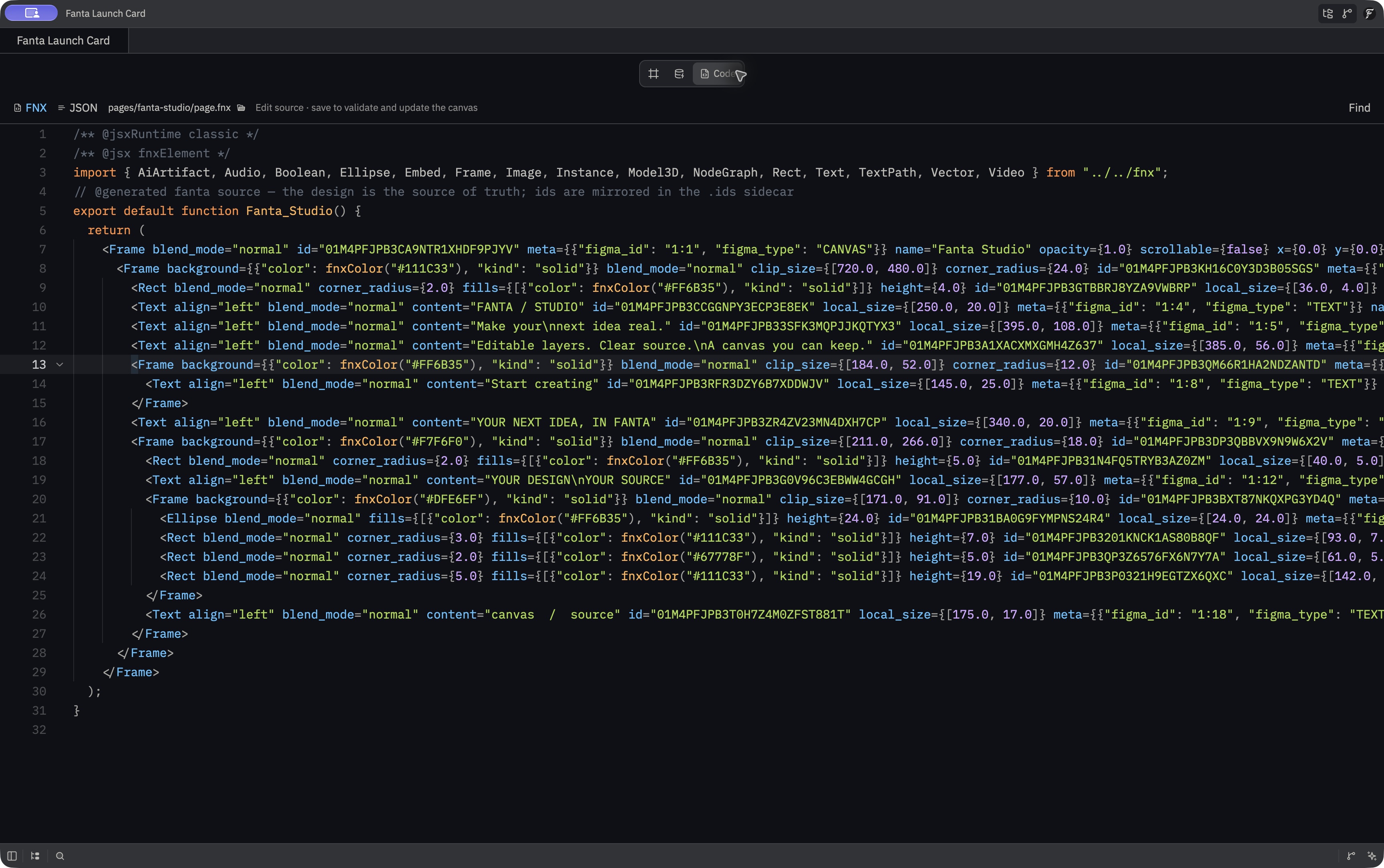
FNX describes the same design as readable text. Save a valid source edit and the canvas updates.
Read the guide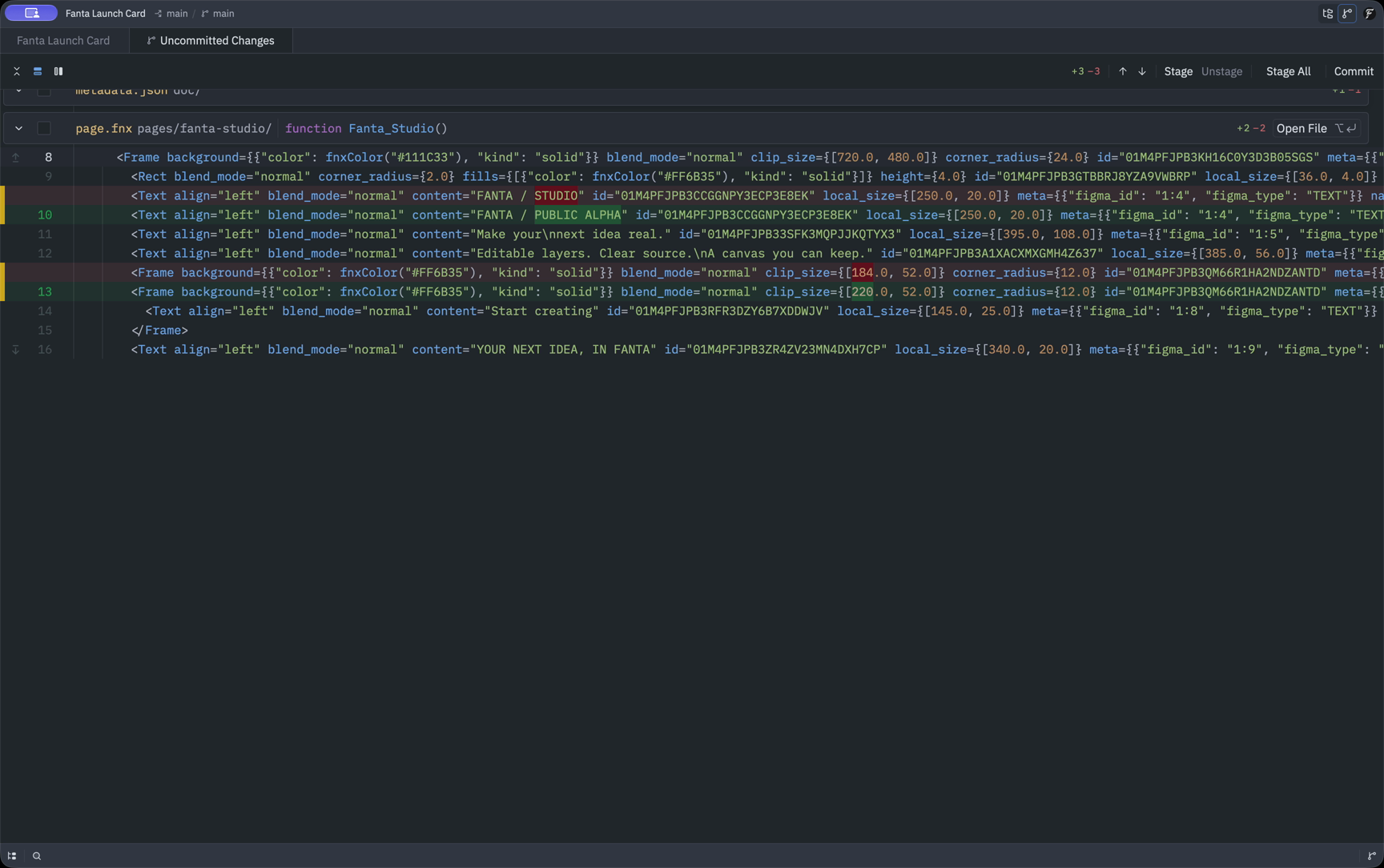
See which properties changed, keep a history, and review the design alongside the rest of your project.
Read the guideA format for your design
FNX is Fanta’s readable design source format. It describes frames, text, shapes, and their properties in a static JSX-like syntax. The canvas and the source are two views of that design.
FNX describes the artwork; it does not execute an application. A complete project keeps shared data, identity files, and media beside it.
Understand FNX<Text
id="01M4PFJPB3RFR3DZY6B7XDDWJV"
name="CTA Label"
content="Explore Fanta"
/>A shortened node example. Preserve its existing ID, save valid source, then inspect the canvas.
Work with an agent
Fanta’s local MCP bridge lets agents inspect layers, make focused edits, read FNX, and check screenshots. Review the result in the editor and Undo a successful batch as one step.
Connect Claude Code or Codex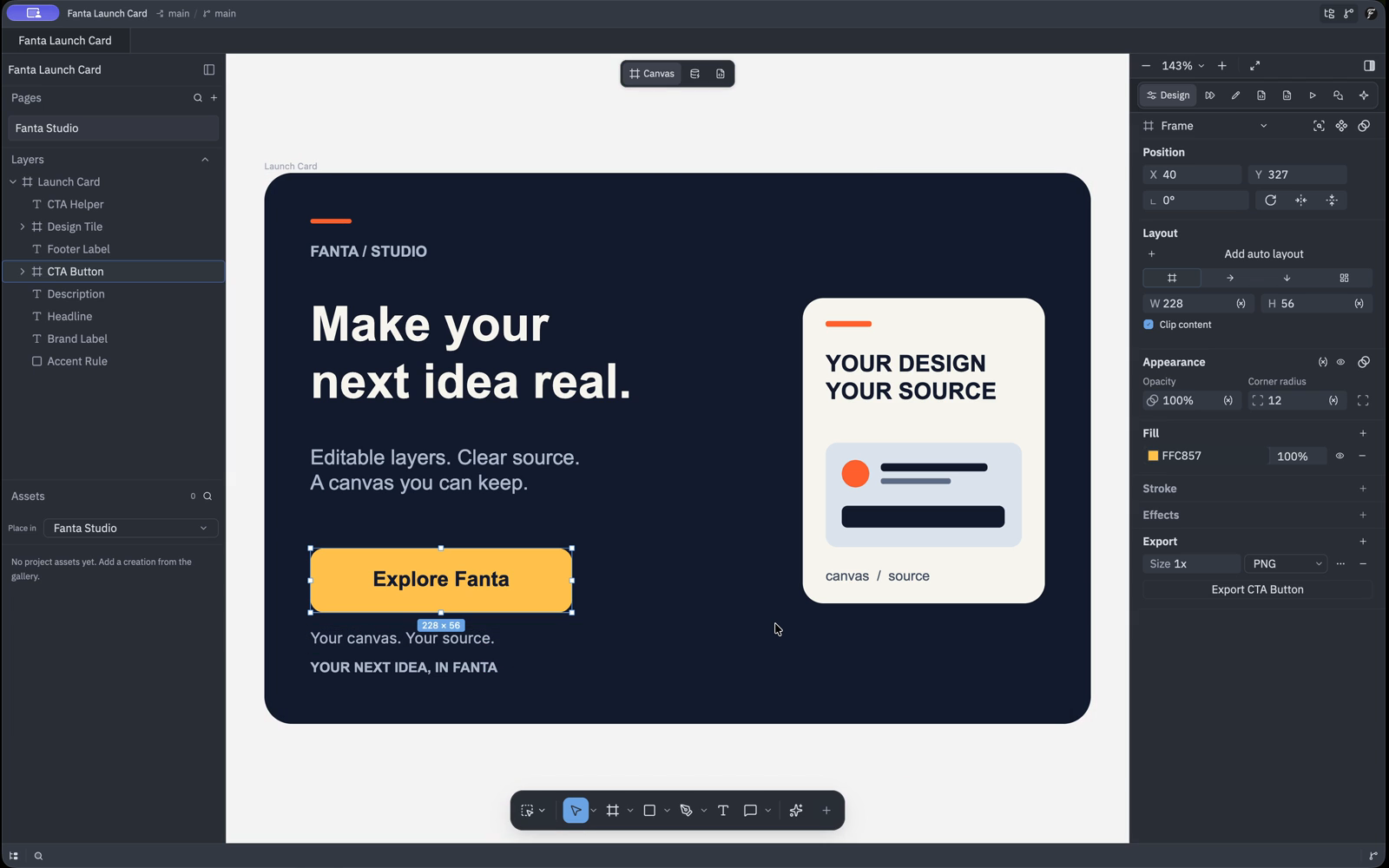
Explore the editor
Build reusable systems with auto layout, component instances, and shared values.
Connect Claude Code or Codex through the local MCP bridge and inspect each edit.
Keep project assets together and explore the signed-in generation catalog.
Explore the current animation and interaction workflows, including their alpha limits.
Features vary by build. The capability guide records current source behavior; the roadmap explains the work ahead.