

Motion
Animate layers with clips, keyframes, playback, and time-linked comments.
Motion
Motion mode adds an animation timeline below the canvas and an Animations inspector for the selected layer. Motion is stored in the design document as clips, tracks, and keyframes. Select one layer before adding an animation or keyframe.
Create an animation
- Open Motion with a design page loaded and select one layer.
- If the timeline has no clip, choose Create animation.
- In the Animations inspector, use + to add Position, Scale, Rotation, Size, or Opacity. These presets create start and end keyframes. The toolbar also offers Slide in, Scale in, Rotate in, Grow, and Fade in.
- Select the animation to adjust its direction or amount, delay, duration, and easing. Drag the playhead or press Play to preview it.
The preset editor recognizes only its own simple start/end pattern. If you change timing or values into a custom keyframe sequence, edit it in the timeline; Fanta displays Custom keyframes rather than rewriting it with the preset controls. A layer can have one animation per property in an active clip. Path appears in the add menu as “soon” and is disabled. Size is offered only for compatible layers.
Edit the timeline
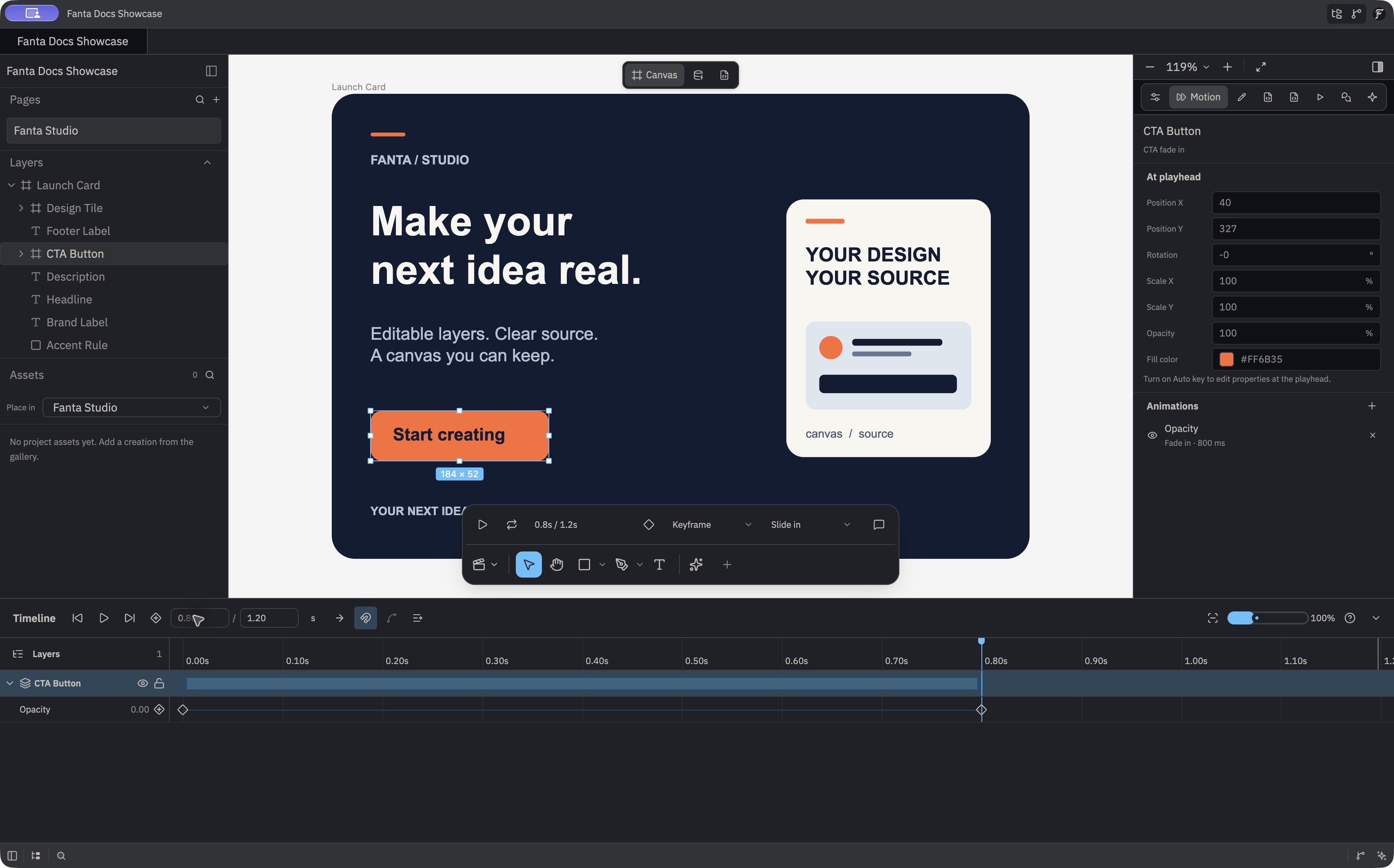
The timeline offers Play/Pause, Return to start, Loop playback, a Current time field, clip name and duration, a + Keyframe menu, and zoom controls. Type a time in Current time and press Return to seek the playhead. The keyframe menu includes Position X/Y, Rotation, Scale X/Y, Opacity, and Fill color. Select a keyframe to change its interpolation between Linear and Hold, choose an easing preset or custom cubic Bézier values, or delete it. Drag a keyframe horizontally to retime it within the clip. Click the clip name or duration to edit them.
The capture shows a 1.20 s clip with the playhead at 0.80 s. Expand CTA Button in the timeline to see its Opacity track and the diamond keyframes. Select a diamond to edit that keyframe, or drag it along the time ruler to change when it occurs.
Turn on Auto key to edit compatible values in the At playhead inspector while playback is paused. Those edits preview immediately and commit as keyframe changes. Without Auto key, the playhead values are read-only. For multiple clips, choose the active one from the Motion inspector. Playback cannot start without a clip of positive duration.
Comment on a moment
Motion can attach a comment to the active clip and playhead time. Use the time comment control, place its pin on the canvas, and send the comment. Opening that thread from the document Comments panel returns to the associated clip and time. A pending comment must be sent or canceled before switching context.
Implementation: crates/fig_viewer/src/motion_panel.rs defines presets, inspector properties, and disabled Path animation; crates/fig_viewer/src/timeline.rs defines playback and keyframe controls; crates/fig_viewer/src/motion_edit.rs commits clip and keyframe edits; crates/fig_viewer/src/comments_ui.rs anchors and navigates motion comments.