

Editor surfaces
Use the canvas, Layers panel, Variables workspace, Code workspace, and presentation view.
Editor surfaces
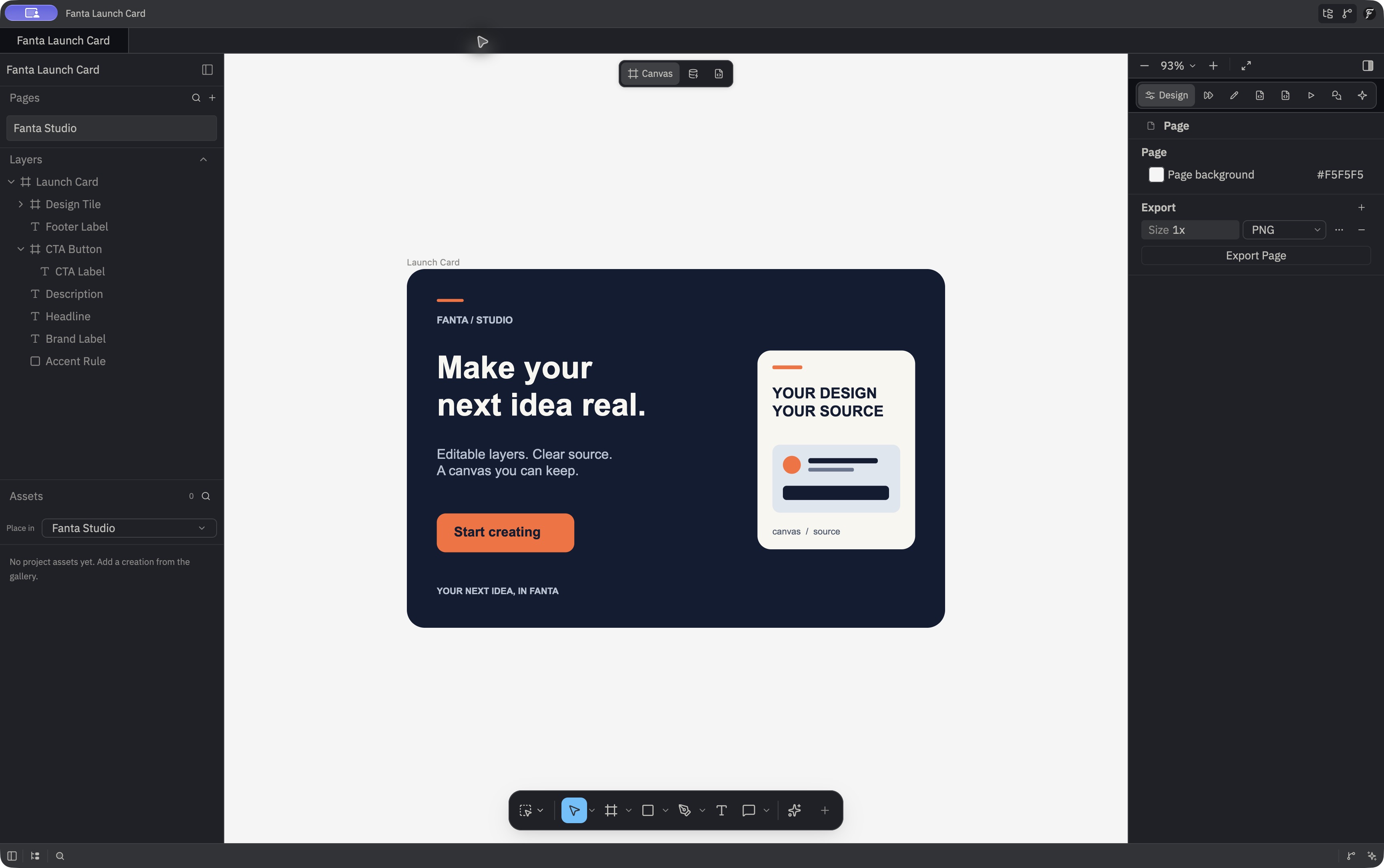
Canvas and Layers
The canvas shows the active page and its selectable layers. The Layers panel lets you select and range-select layers, expand groups, rename nodes, toggle visibility and locking, and drag layers above, below, or inside other nodes. When you open a component master, its root appears as an editable row in Layers; expand it to see the master's children. Its context menu includes duplicate and delete, copy as SVG or PNG, copy properties, move to page, group and ungroup, frame or section conversion, flatten, outline stroke, mask, media replacement and cropping, layout, and component actions. The available actions depend on the layer.
The Pages area of Layers creates, selects, renames, duplicates, reorders, and deletes pages. It also includes a page link action and name/text search and replace. Right-click on the canvas for a shorter menu tailored to what you clicked, including direct text, vector, image, media, and component actions. Canvas tools →
Drag the edge of the Layers or Properties sidebar to resize it. The panel contents respond as the width changes.
Files and Project Assets
The file inspector shows project files and an Assets section for stored images, SVG, video, and audio. Generated results can be added to this library without creating a page layer. Choose a target page under Place in and use the asset row's + button when you want a layer. Missing files or unsupported formats show a disabled placement action with a reason. Project Assets →
Variables
The Variables workspace manages collections, modes, values, aliases, and bindings. Create a collection and variable, set mode values, then bind compatible selected layer properties. Scope a mode to preview a different value set.
Code
The Code workspace opens the active page's page.fnx and page.json, or a component master's master.fnx and def.json. Select FNX or JSON to edit that source file. Find searches the selected source buffer. Save the design once before opening source. Save or discard canvas changes before editing source; while either source buffer has unsaved changes, canvas content editing is locked, but pan and selection remain available.
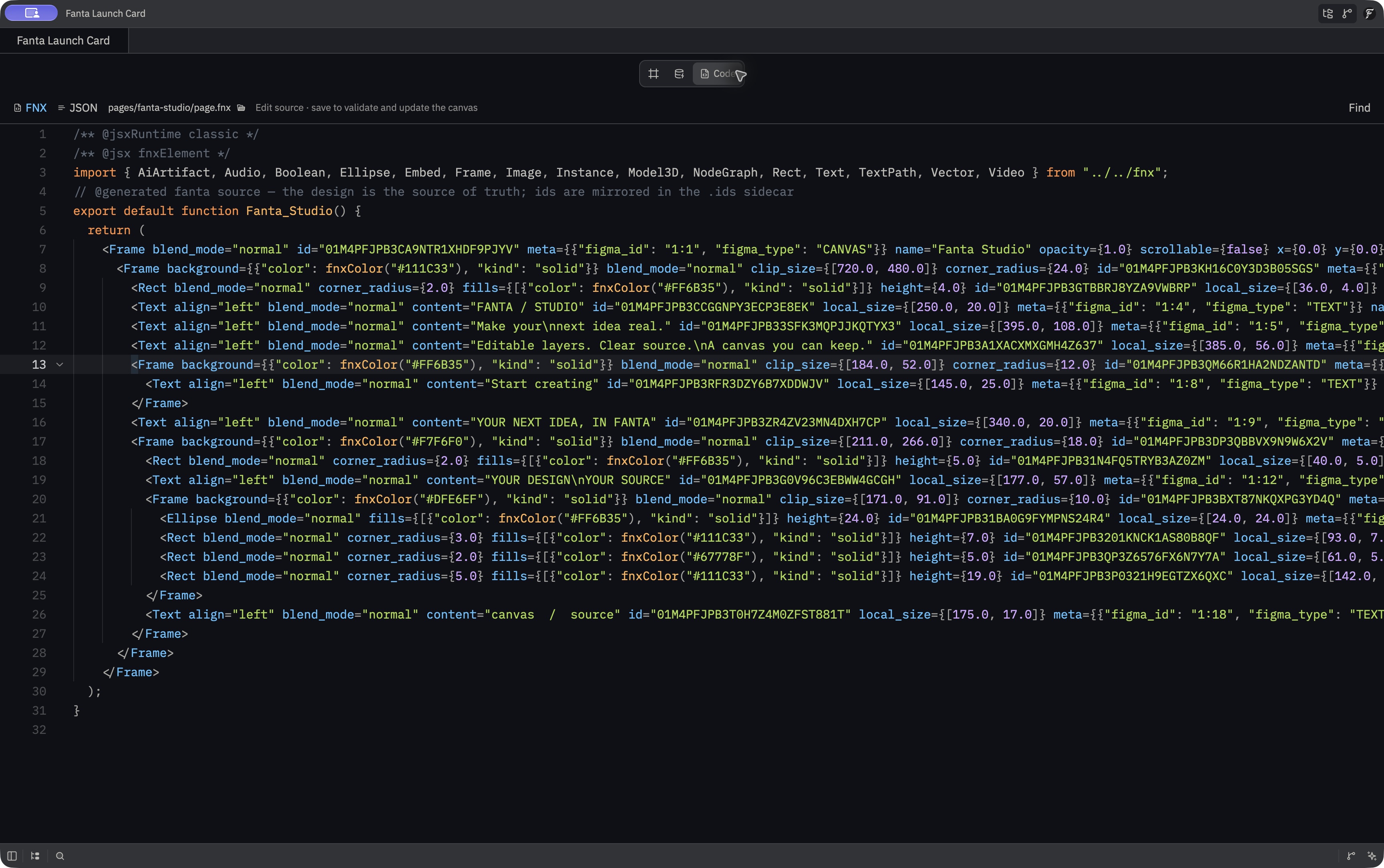
While a source draft is unsaved, select one canvas layer to read its last accepted properties in the Design inspector, including position, size, and layout gap. These rows cannot be edited until the draft is saved or discarded. With no selection or a mixed selection, the inspector asks you to select one layer. A source draft also blocks Go to main component when that action would switch page or component scope; save or discard the draft first.
Save source to validate the edited file against the project, write it, and reload the canvas. FNX saves also maintain its ID sidecar. Invalid JSON stays in the editor with an error and does not replace the saved file or the last good canvas. If both FNX and JSON have changes, Fanta saves and validates them in sequence. Discard draft discards unsaved edits in the selected source file only; switch between FNX and JSON to check each buffer. Resolve any on-disk file conflict before retrying. When an in-app agent is writing the selected FNX file, Code shows its name and can follow its live source location. Choose Pause follow to navigate independently, and Follow to resume.
The canvas can also show an Agents control for active design agents. Select an agent to follow its current page or component and its Canvas, Variables, or Code workspace. Select the agent again to stop following. Source activity can open the relevant source tab. A clean canvas tab restores its project, page, or component location when the workspace reopens.
Current source saves an intentionally empty design tab layout, so restarting does not reopen a tab that you closed. Explicitly opening that project again opens one tab; repeating Open reuses it after a project manifest replacement. These paths have bounded source tests; installed-app behavior beyond the recorded workflows remains unverified.
Dev mode
Dev mode is a read-only artwork inspection session with page-bound measurements and annotations. It starts on a loaded canvas, activates Inspect, and offers Inspect, Hand, Measurement, Annotation, and Saved Code. The Code workspace is read-only while Dev mode is active; Variables is unavailable. A Readiness unavailable control is disabled in the current build. See Dev mode for the workflow.
Motion
Motion mode shows the animation timeline and Motion inspector. Create or select a clip, add an animation to one selected layer, and preview or edit keyframes at the playhead. See Motion for properties, timing, and current limits.
Build
Build mode opens Plan & build beside the canvas. With a signed-in account on a build connected to Fanta's v2 service, describe a design task, review each proposed canvas change, then Accept, Retry with feedback, Skip, or Stop. You can choose automatic acceptance. Retry and Skip undo the latest preview when it is still safe to undo; Stop leaves changes already applied on the canvas. Agent workflows →
Prototype and comments
Use the Prototype inspector controls to connect triggers and actions, then Present to test the flow. The Comments mode and tool provide a page-anchored discussion surface with threads, replies, attachments, mentions, resolution, and time-linked comments on motion clips. The document Comments panel lists comments across pages and opens the selected thread. See Comments for mentions, attachments, replies, and reviewed Agent drafts.
Fanta has a live local design tool interface for agents. Its operations cover creating common nodes, changing style and layout properties, and inspecting structure; it does not use a required fixed HTTP port. See agent integration and Settings for current setup and build differences.
Layer behavior is in crates/fig_viewer/src/design_panel.rs and crates/fig_viewer/src/layer_context_ops.rs. Variables and Code are in crates/fig_viewer/src/variables_workspace.rs and crates/fig_viewer/src/code_workspace.rs.