

Editor
Navigate Fanta's canvas, workspaces, modes, and panels.
Editor
Fanta's editor has three main workspaces: Canvas, Variables, and Code. Canvas is where you select and draw layers. Variables manages reusable values and modes. Code opens the active page or component's FNX and JSON source files. Saving a source edit validates the project before the canvas reloads it.
Within the canvas, modes include Design, Motion, Draw, Dev, Code, Prototype, Comments, and Build. The available panels and controls follow the selected mode and layer. The Layers panel organizes pages and nodes; the file inspector's Assets section places stored media; the design inspector edits the current selection. A toolbar gives you selection, shape, drawing, text, and view tools.
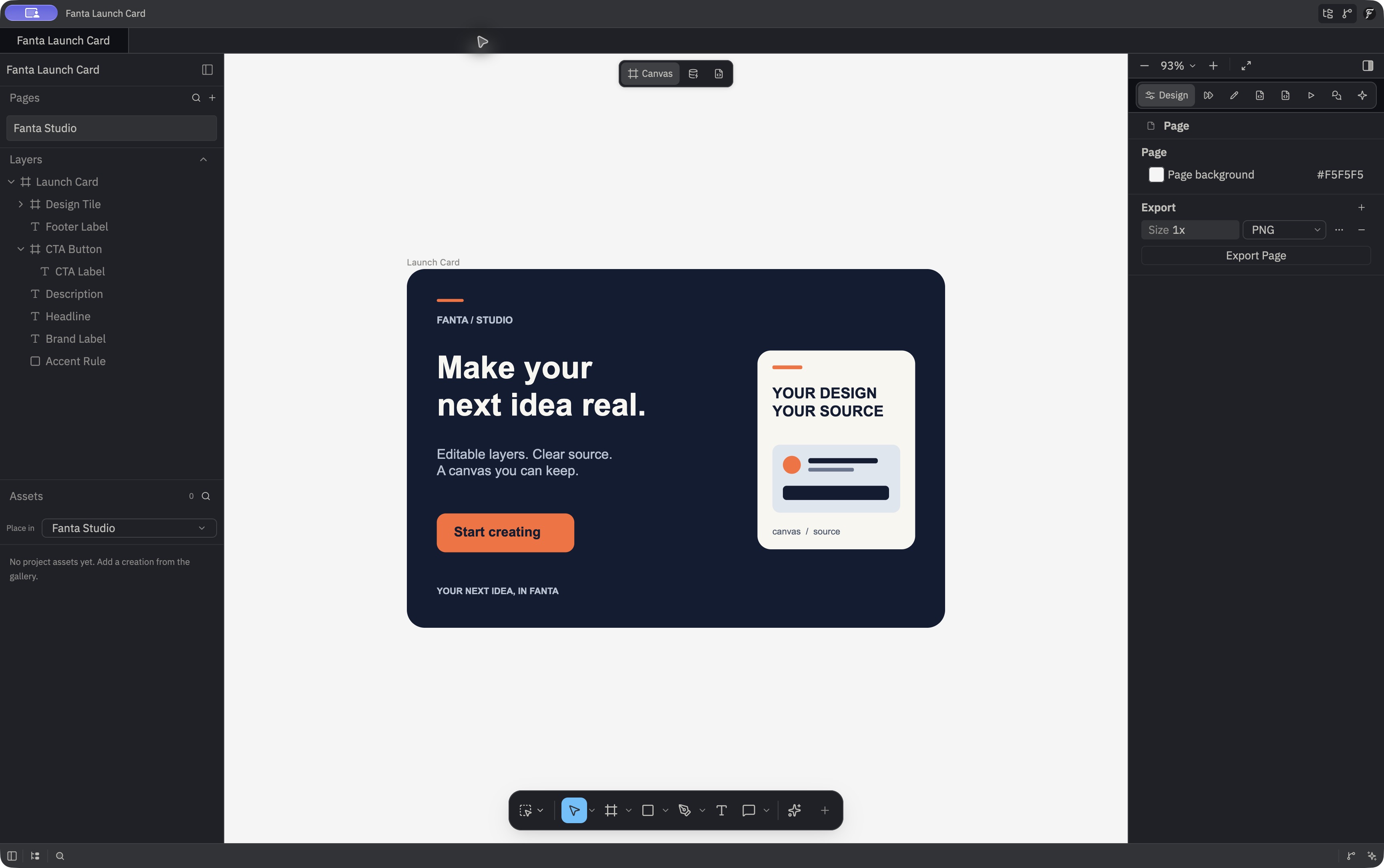
A typical session
- Create a design with File → New Design, or open an existing design.
- Select a page and create a frame, shape, text layer, or other supported node.
- Select the layer on the canvas or in Layers. Use the inspector for precise properties.
- Organize the tree through Layers: rename, hide, lock, group, reorder, or move a layer to another page. Use Assets to place a stored image, SVG, video, or audio result.
- Use Variables for shared values, Code for the active page or component's FNX and JSON source, and Present for prototype testing.
- Export a selection or page through the inspector when you need a deliverable.
Fanta saves its local project after a short idle period. If saving fails, it shows a notice until a later save succeeds; the design remains unsaved in the meantime. The project is a folder, so keep its metadata, pages, components, and assets together. Read Document model for the file structure.
Learn the tools, inspector, Project Assets, surfaces, Motion, Dev mode, Comments, Settings, and shortcuts. Editor modes and workspaces are defined in crates/fig_viewer/src/editor_session.rs.