
Fanta docs

Inside the app

A visual tour of Fanta’s real Layers, Variables, layout, components, FNX, Motion, and Prototype screens.

These screenshots were taken in the installed Fanta Public Alpha 1.0.0 app on October 13, 2026, using our own Launch Card and Docs Showcase projects. Each close-up links to the original full app capture.

Layers

Expand a frame to see its children. Here, Launch Card contains text, shapes, the Design Tile, and a CTA Button with its own label. Explore the editor surfaces →
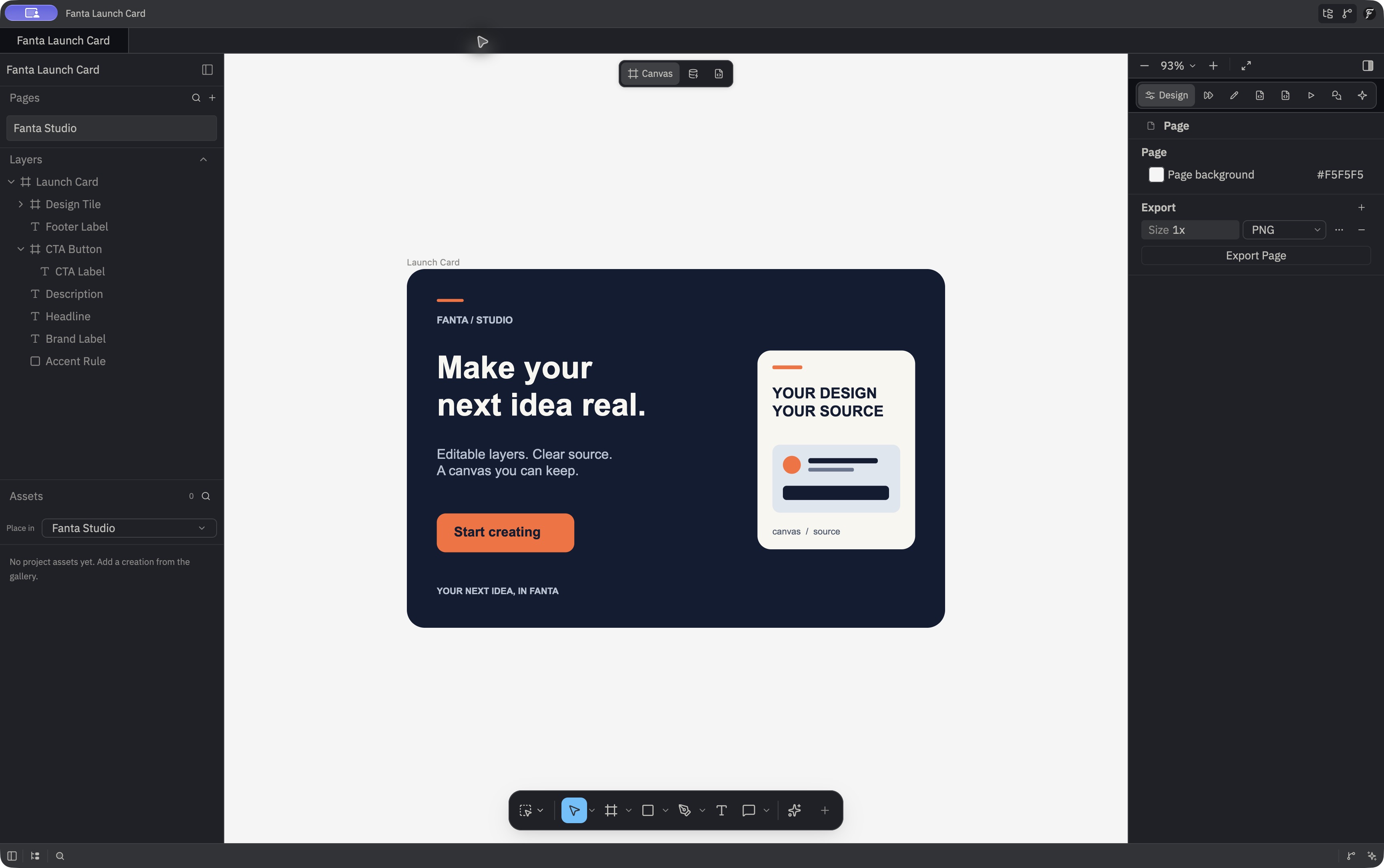
Fanta Studio page and Layers panel, with Launch Card and CTA Button expanded to show CTA Label.
The launch card’s actual page and layer hierarchy.Open full app screenshot

Variables and modes

Open the Variables workspace to work with collections, mode values, and aliases. The showcase’s sample collection, Fanta Brand, uses Light and Dark values for the navy-and-orange launch card, plus spacing and radius tokens. Semantic/Action aliases Color/Accent. Work with variables → · Official brand identity →
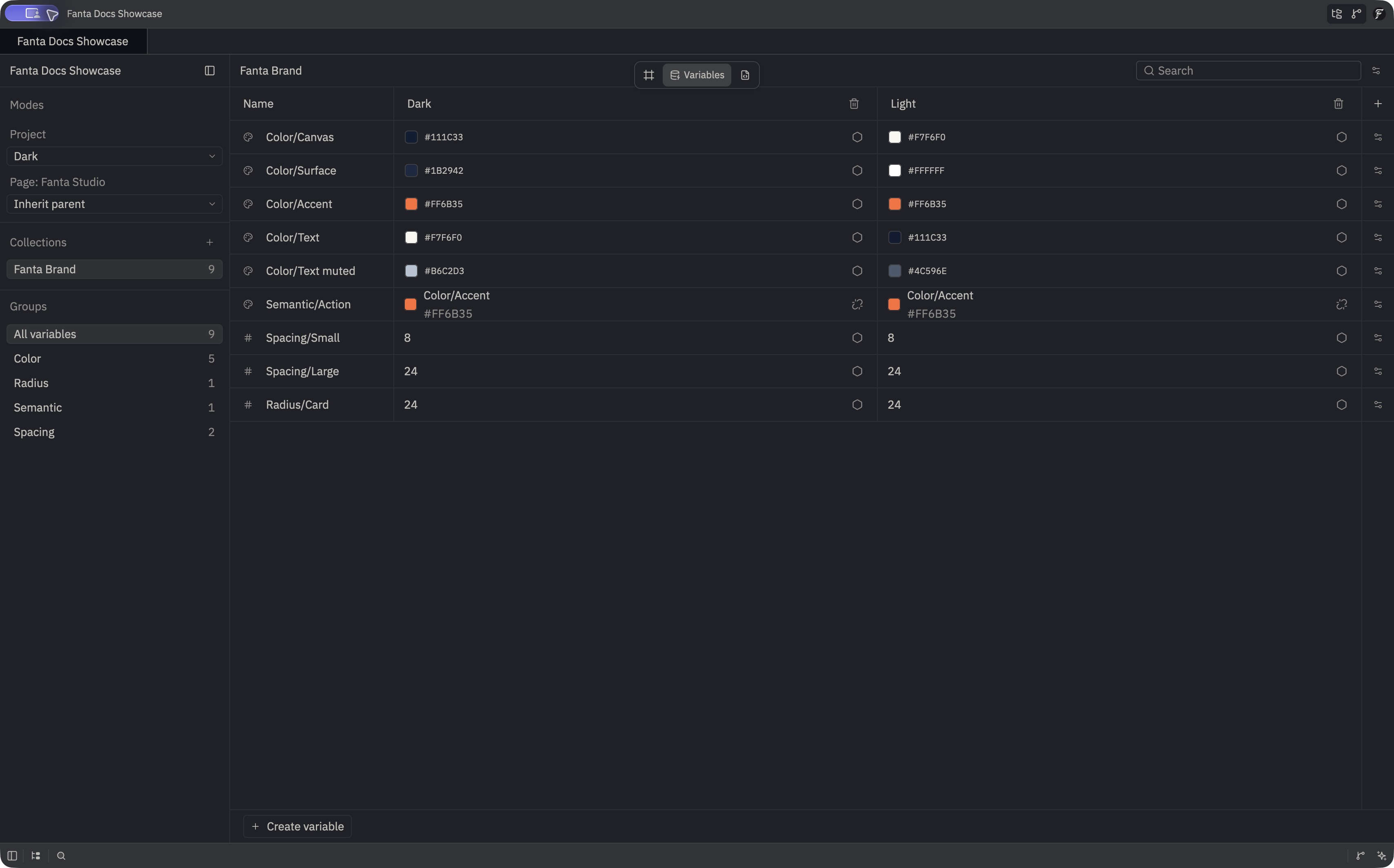
Fanta’s Variables workspace populated with the Fanta Brand sample collection, Dark and Light columns, color variables, an Action alias, spacing, and card radius.
Nine sample variables shown in the real Variables workspace, with both mode columns visible.Open full app screenshot
Close-up of the sample variables’ names and Dark values, including Semantic/Action resolving through Color/Accent and numeric spacing and radius values.
A closer look at the Dark values and the color alias.Open full app screenshot

Auto layout

Select a container to edit its Layout controls. This button uses a horizontal layout with centered alignment and separate vertical and horizontal padding. Set up auto layout →
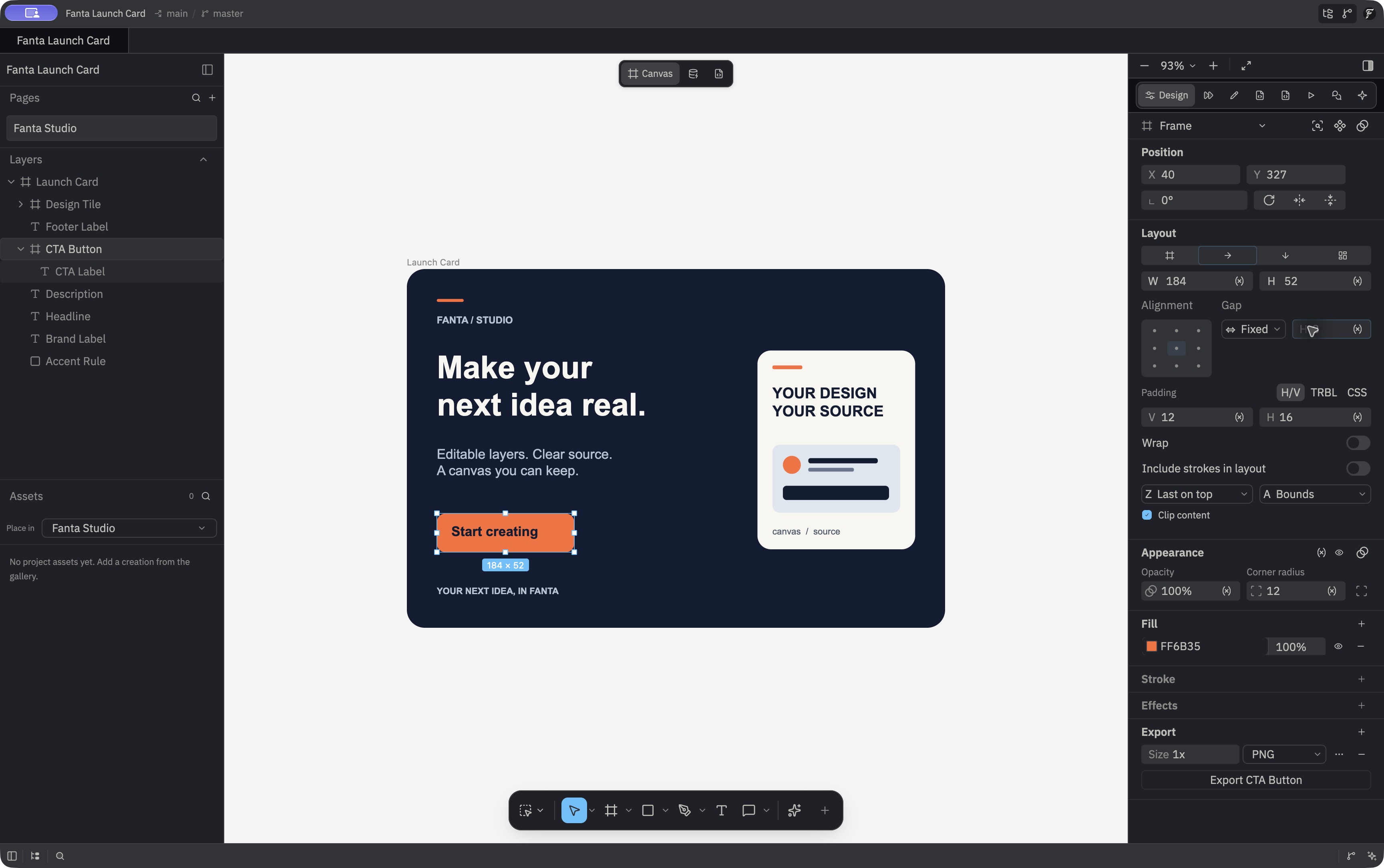
The CTA Button’s native Design inspector showing horizontal layout, dimensions, alignment, gap, padding, and clipping controls.
The selected button’s Layout inspector in the Launch Card project.Open full app screenshot

A component master

The CTA Button was created as a component in the app. Its inspector identifies it as Component; the sample has no exposed component properties yet. Create components and instances →
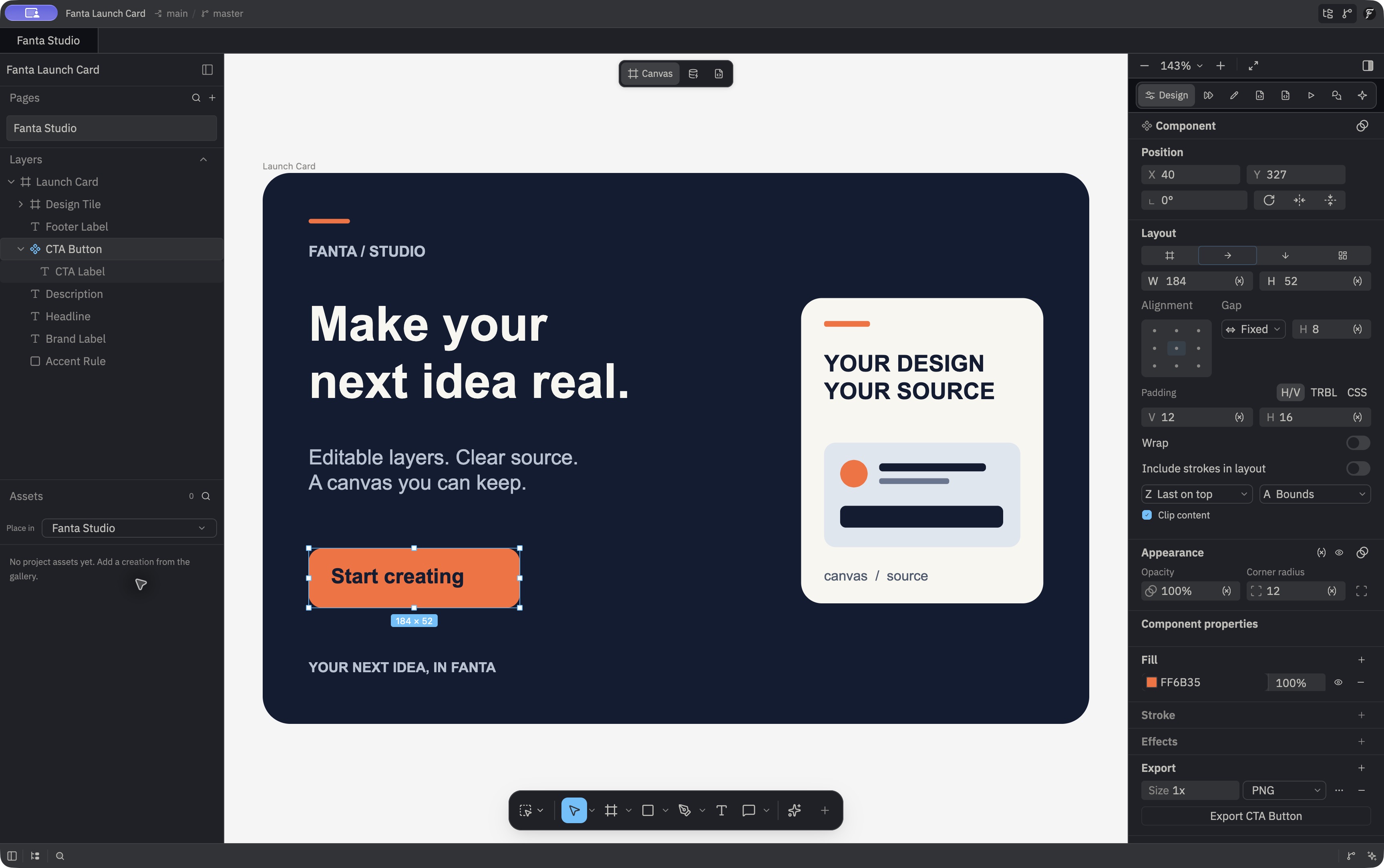
The selected CTA Button identified as Component, with layout controls and an empty Component properties section.
The component master’s native inspector.Open full app screenshot

FNX source

Switch to Code, then choose FNX, to inspect the page’s design source. The launch card appears as nested frames, text, and shapes with stable layer IDs. Understand FNX → · Version control a design →
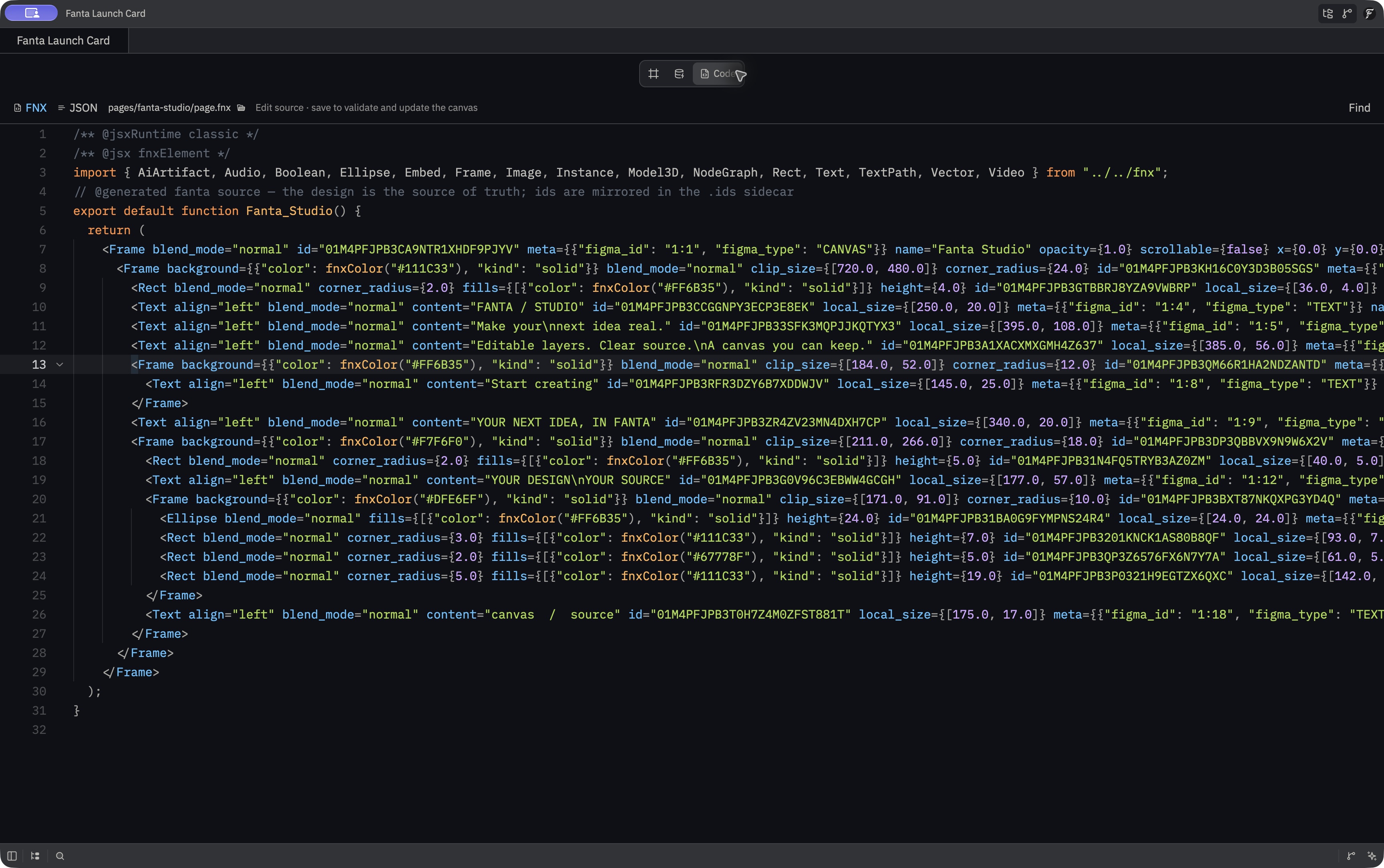
Fanta’s Code workspace with FNX selected and pages/fanta-studio/page.fnx open, showing the launch card’s nested design elements and IDs.
The actual page.fnx file open inside Fanta.Open full app screenshot

Motion

Motion shows the selected layer’s animation controls and timeline. The showcase includes a CTA fade in clip: button opacity goes from 0 to 100% over 800 ms within a 1.2-second clip. The capture is paused at 0.8 seconds. Animate a layer →
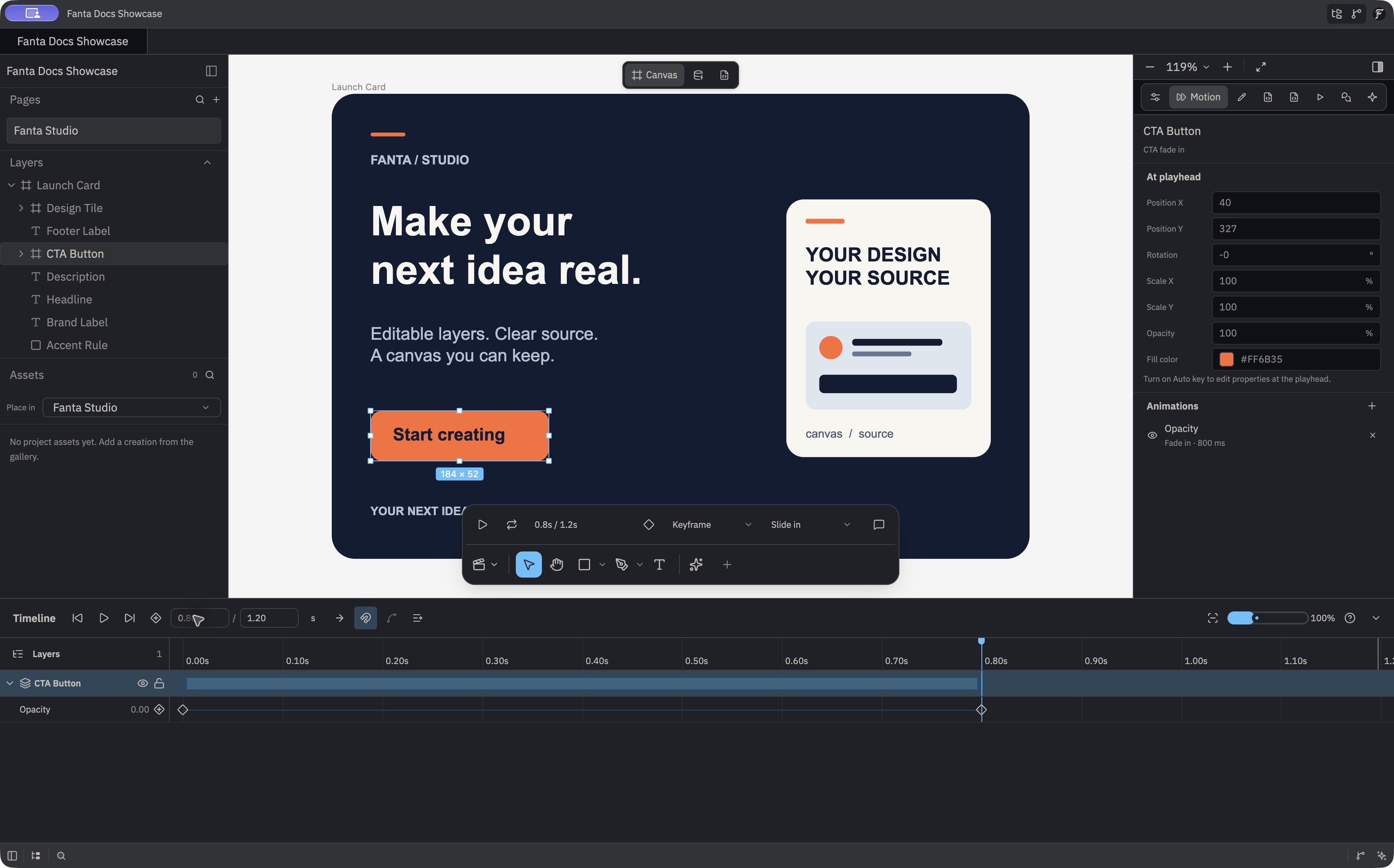
Motion inspector for CTA Button, showing playhead properties at 100 percent opacity and an Opacity Fade in animation lasting 800 milliseconds.
The sample opacity animation in the Motion inspector.Open full app screenshot
The native timeline with CTA Button’s Opacity track, keyframes at the start and 0.8 seconds, and a 1.2-second clip duration.
The opacity keyframes and playhead in the same real app capture.Open full app screenshot

Prototype interactions

In Prototype, open an interaction to inspect its trigger and action. The showcase button uses On click → Open link with the docs URL and an Instant transition. Build a prototype →
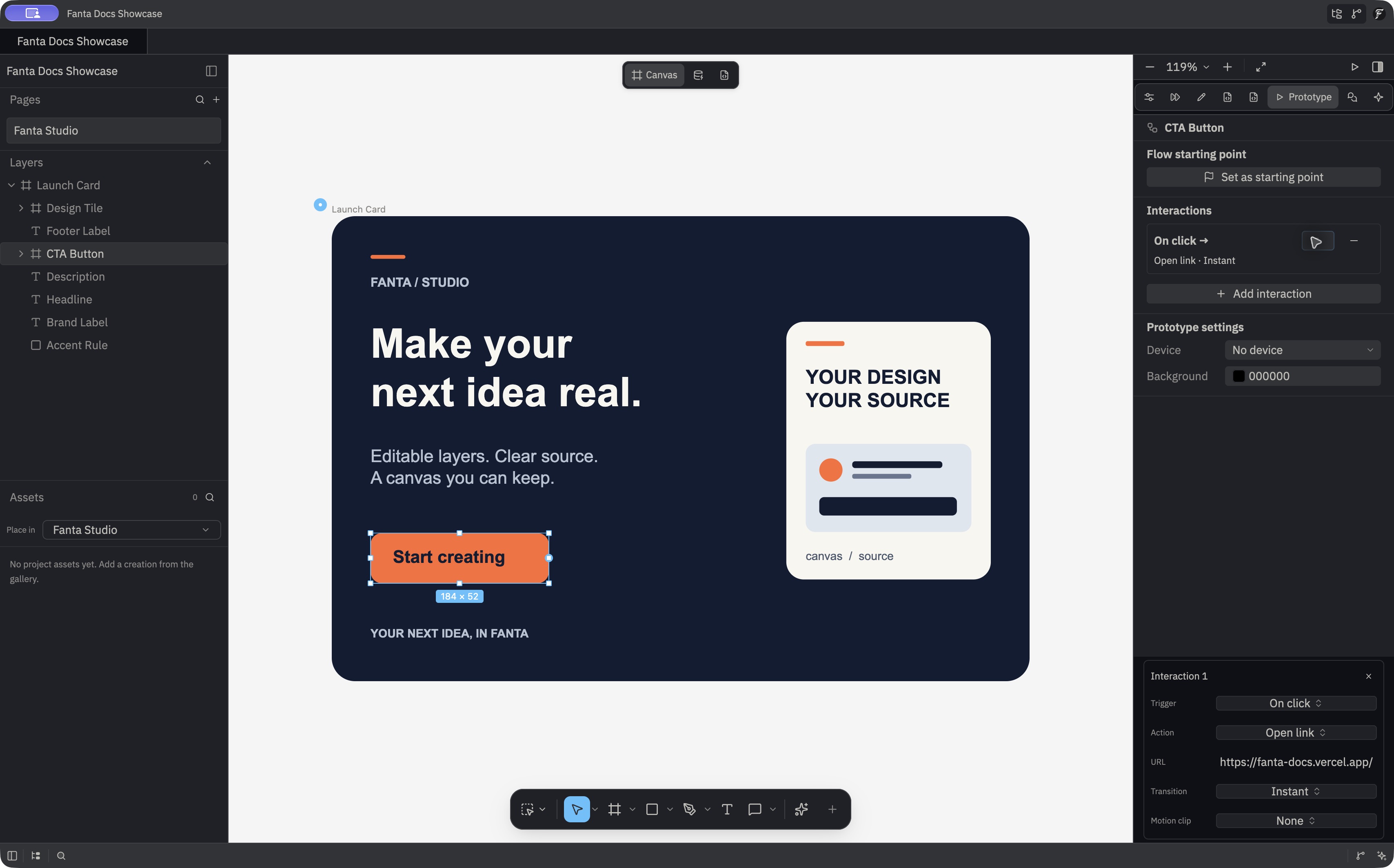
The native Interaction 1 popup showing On click, Open link, https://fanta-docs.vercel.app/, Instant transition, and no motion clip.
The sample button’s actual interaction settings.Open full app screenshot

On this page