

Inspector
Edit selected layers and export designs.
Inspector
The inspector reflects the current selection. Select one layer for its full set of compatible controls or several layers for shared properties and multi-selection actions. A control may be absent or unavailable for a node type that does not support it.
The inspector toolbar has zoom out and in, a percentage menu with 25%, 50%, 100%, and 200%, Fit to View, Fit to Selection, and a control to collapse or show Properties. When Properties is collapsed, these view controls stay in a compact floating bar. In Prototype mode, the toolbar also offers Play Prototype when the document has an entry frame.
Common sections include geometry and rotation, corners and smoothing, appearance and opacity, blend mode, fills and strokes, typography, image fitting, layout and child layout, effects, prototype interactions, variable bindings, components and instances, and export. Use the inspector when exact dimensions or values matter; canvas handles are faster for rough adjustments.
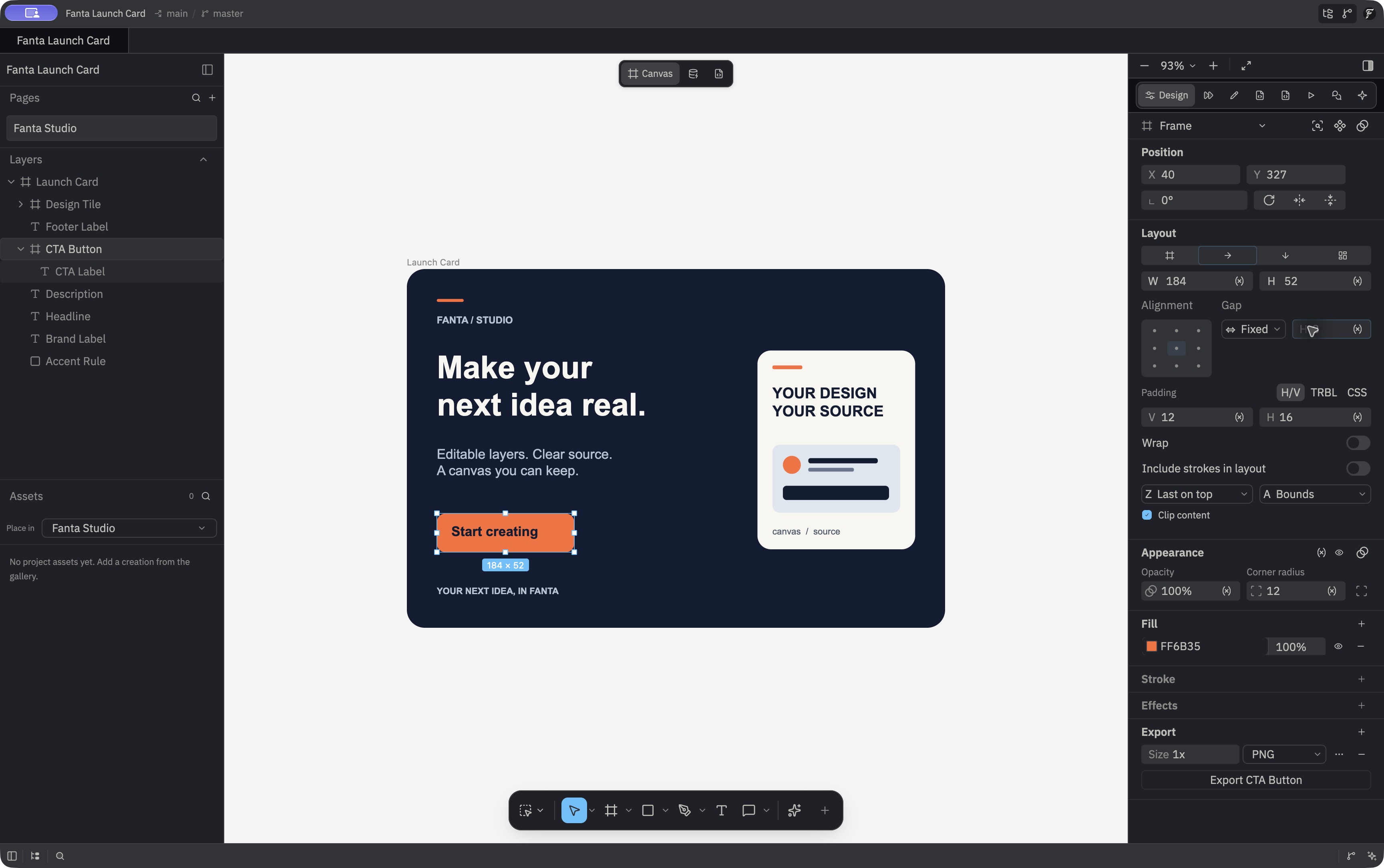
With one layer selected, the selection header offers Select matching layers when another layer of the same kind exists on the active page. It selects matching descendants on that page without changing artwork or adding an Undo step. Sections match other Sections, even when their paints or inspector presets differ; they do not match ordinary Frames or Groups. Component masters keep their component identity. Converting a layer to a Frame or Section changes which layers match it.
For a selection, the arrange controls align layers by left, center, right, top, middle, or bottom edge. With three or more selected layers, distribute them horizontally or vertically; Tidy up works with two or more. Transform actions rotate the selection clockwise by 90° or flip it horizontally or vertically. Controls that cannot apply to the current selection are unavailable. The default inspector does not expose editable constraints.
The opacity, visibility, and uniform vector radius fields show resolved values when bound to variables, including aliases and active or inherited mode pins. Explicit independent corner values take precedence over a bound uniform radius; unresolved bindings show the layer's fallback value and remain detachable. Four authored corners remain independent even when all four numbers match. For a mixed selection, opacity shows a mixed state and applies one value to the selected layers when the edit commits. Drag a numeric value to scrub it; Escape cancels a draft, and a completed edit is undoable. Mixed-selection opacity does not preview directly on the canvas during the scrub.
A valid numeric property draft still in focus is committed before Save, Save All, or a close action with Save. Invalid input blocks that save and remains available for correction or cancellation. Merely focusing an X/Y field whose display is rounded does not replace its underlying fractional value; a typed fractional X/Y edit is preserved.
For a grid frame, Layout exposes column and row tracks, gaps, automatic or manual item positioning, and each selected child's cell, span, and alignment. Grid layout → An instance's variant choices appear before its other component properties; picking a value swaps to the matching variant when that combination exists. Components →
An instance's component section also lists Content rows for its visible text layers. Edit a Content row to create a local text override, or reset it to use the master value. A direct text-content variable binding makes that row read-only; edit the variable or remove its binding first. Nested instance text is not recursively listed as a Content row.
Paints and effects
The paint list supports adding and removing fills or strokes, toggling individual paint visibility, changing a paint kind, and editing gradient stops in a popover. A gradient edit previews on the canvas and commits as an undoable change. The effects list supports drop and inner shadows. Available controls depend on the selected node and paint. During stable pans, Fanta can reuse rendered effect layers; moving or editing artwork refreshes affected effects while unrelated layers may remain cached. This does not change the saved design.
For an image or video paint, the source chooser lists placeable project assets. It shows a project's asset-library name when available, otherwise a layer name or a generic name; video sources are available on macOS. The list follows asset and layer changes, Undo/Redo, and project reloads. Project Assets →
To crop a selected image, double-click it on the canvas or use Crop image in the canvas context menu. The Design canvas then shows Ratio, Cancel, and Apply crop controls above the toolbar. The pending crop is a preview until applied. Crop an image →
A Boolean layer exposes its Union, Subtract, Intersect, or Exclude operation, plus applicable fills and strokes. Color paints bound to a variable show the value resolved for the active mode and the variable name. Detach the color variable to edit that paint's color, opacity, or visibility independently; detach keeps the currently resolved color. Specialized layer kinds can expose common wrapper properties such as position, layer appearance, effects, and export even when their internal content is not editable here.
Text on Path
A selected TextPath layer exposes typography plus controls for where text starts on the path, direction (forward or reverse), and which side of the path carries the text. Start can be edited as a segment and position or as an offset along the current contour. With one editable TextPath layer selected, choose Edit object in the inspector header to open inline text editing with all text selected. This action is unavailable for multiple selections, locked layers or ancestors, read-only states, and virtual TextPath content inside an instance. The editor checks the current selection again before acting, so an outdated inspector command does not edit a different layer. This layer has a focused property set: paragraph spacing and indentation, list controls, vertical alignment, text resize and truncation, and some decoration and case controls are read-only because they do not exist on text paths. The text fill is limited to color and opacity.
TextPath X and Y fields use its painted bounds. Editing one coordinate moves the visible path text to that displayed position, including under a transformed parent, without changing the path shape or other coordinate.
Export
- Select one or more layers to export each selected layer. To export the active page, clear the selection and activate that page.
- Open the Export section in the inspector.
- Choose PNG, JPG, SVG, or PDF.
- For raster formats, choose 1×, 2×, 4×, or custom dimensions.
- Export and inspect the resulting file.
Raster export is limited to 8192 px per side and 16 million total pixels. If a requested size exceeds a limit, reduce the scale or dimensions. Exporting the active page scopes output to that page. Multiple selected layers can be exported as targets.
Fills include solid colors, gradients, patterns, images, and shaders. Video paint is available on macOS. The renderer uses Skia's standard blend modes, additive blending for Linear Dodge, and a separate blender for Linear Burn. Some imported or visible controls may have incomplete editing paths and show a notice. Drop shadows and inner shadows render as effects. For any imported design or unusual paint combination, inspect the exported result.
Inspector UI and snapshots are in crates/fig_viewer/src/properties_panel.rs and crates/fig_viewer/src/properties_snapshot.rs; export limits and formats are in crates/fig_viewer/src/export.rs. Paint handling is in crates/fanta-render/src/paint.rs.